If you want to exclude Out-Of-Office (OOO) replies from your campaign data, we provide two methods to achieve this. These automatic responses often don't provide actionable insight and can skew your campaign statistics.
Navigate to the Master Inbox: This is the primary location for all incoming email responses.
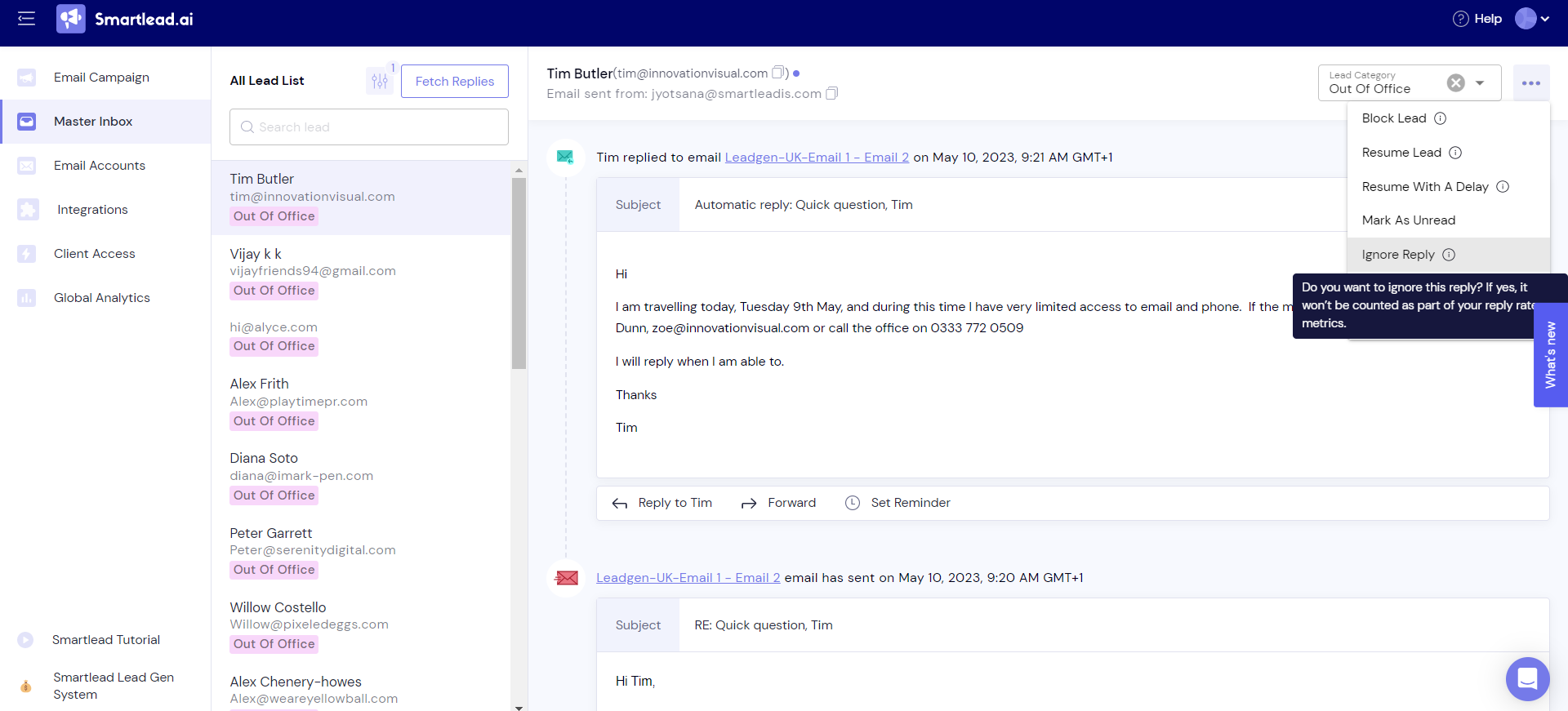
Filter for OOO Replies: Use the lead category filter to show only OOO replies. This will allow you to manage these specific responses easily.
Ignore the Reply: Click on the three dots menu icon at the top right of the screen. From the drop-down menu, select "Ignore the Reply". This will remove the selected OOO replies from your campaign data.
Refer to the screenshot:
Login to Your Account: Enter your account credentials to access the campaign dashboard.
Navigate to Email Campaigns: Here you'll see a list of all your campaigns.
Edit the Campaign: Click on the campaign where you want to ignore the OOO replies. From the menu that appears, select "Edit Campaign" > "Campaign Settings".
Access Intelligent AI Lead Categorisation: Within "Campaign Settings" > "General", scroll down until you see "Intelligent AI Lead Categorisation".
Ignore OOO Replies: Select the option for "Out Of Office". Then, check the box for "Ignore the auto-categorized OOO reply from the reply %".
Save Your Changes: Click on "Save" to update your campaign settings.
Refer to the screenshot:

Note: If you want to reintegrate OOO replies back into the sequence at a later time, you have the option to do so with a delay. This can be useful if you're dealing with holiday seasons or extended leave periods where OOO replies may be more common.
